
Pipeline Visualization
Overview
Based on the Pipeline as Code philosophy, pipeline configuration files need to be written manually. When the configuration is complex (especially when using include to introduce templates), developers often ask themselves: Is the syntax correct? Does the final pipeline content meet expectations? Will the pipeline be triggered as expected?
This article uses the code Push event as an example to achieve "what you see is what you get" for pipeline configuration through four steps: Write → Preview → Flow → Event Tracking, ensuring efficient pipeline operation.
Writing
Before writing the pipeline configuration file, it is recommended to configure the syntax checking and auto-completion feature of your code editor to quickly discover syntax errors and get code snippet suggestions.
Configuration Example
The following is an example of referencing a pipeline template file:
main:
  push:
    - stages:
        - name: pipeline 1 stage 1
          script: echo "pipeline 1 stage 1"
        - name: pipeline 1 stage 2
script: echo "pipeline 1 stage 2"include:
- template.yml
main:
push:
- stages:
- name: pipeline 2 stage 1
script: echo "pipeline 2 stage 1"
- name: pipeline 2 stage 2
script: echo "pipeline 2 stage 2"Usage Tips
- Use
includeto reuse pipeline templates, reduce duplicate configuration, and improve maintenance efficiency - Supports referencing template files from other repositories
- For detailed
includesyntax, please refer to include configuration
Preview
After writing, commit and push the configuration file to the remote repository, then view the .cnb.yml file on the repository homepage and switch to the "Preview" tab.
Preview Effect
You can see that the content of template.yml has been successfully merged into .cnb.yml:
main:
  push:
    - stages:
        - name: pipeline 1 stage 1
          script: echo "pipeline 1 stage 1"
        - name: pipeline 1 stage 2
          script: echo "pipeline 1 stage 2"
    - stages:
        - name: pipeline 2 stage 1
          script: echo "pipeline 2 stage 1"
        - name: pipeline 2 stage 2
          script: echo "pipeline 2 stage 2"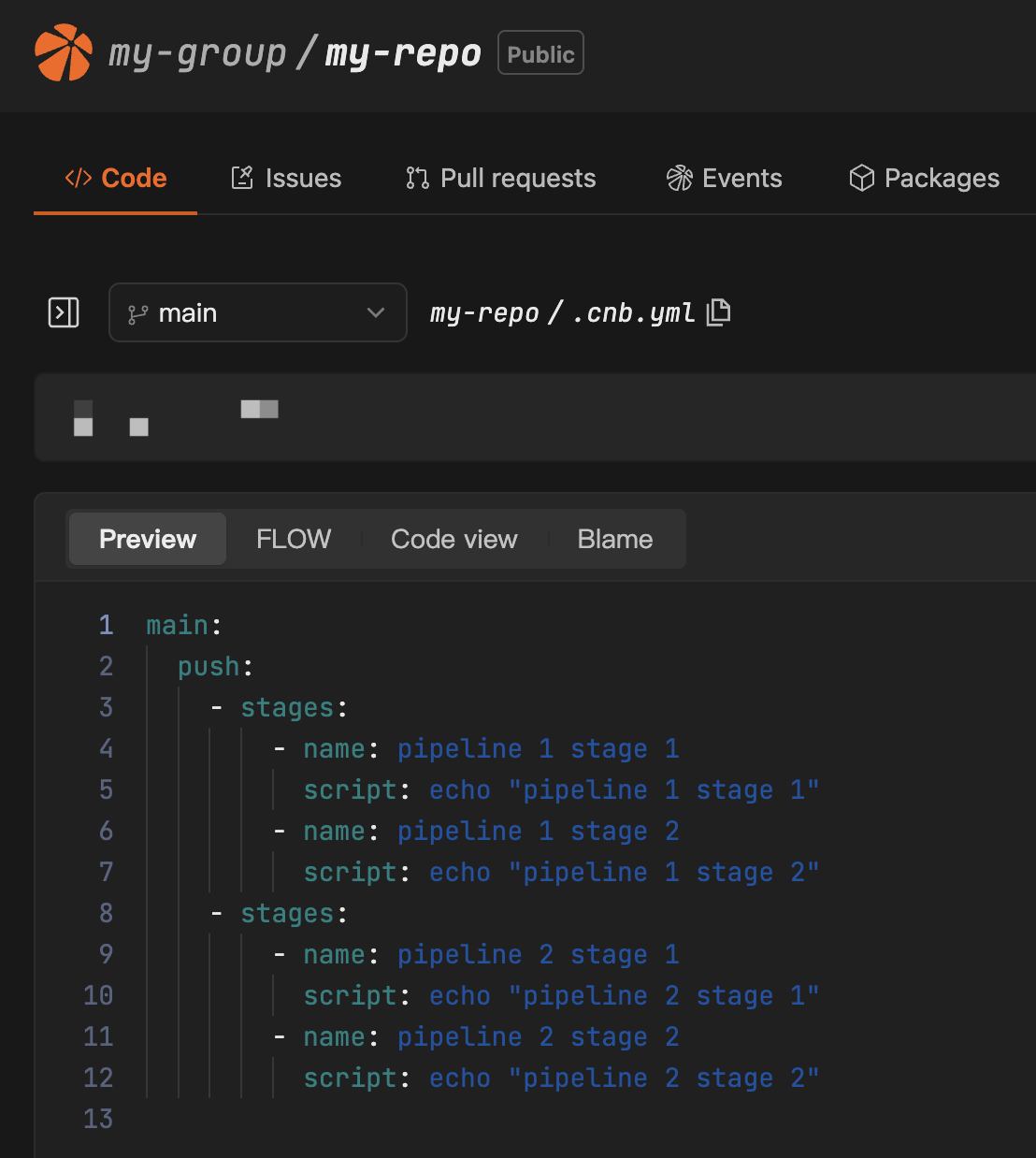
Features
- Configuration Validation: Confirm whether the final configuration meets expectations
- Merge Display: Show the merge result of templates introduced by
includewith the main configuration - Troubleshooting: Avoid pipeline runtime failures caused by template reference errors or configuration conflicts
- Syntax Checking: Automatically detect syntax errors and discover issues before running
Flow
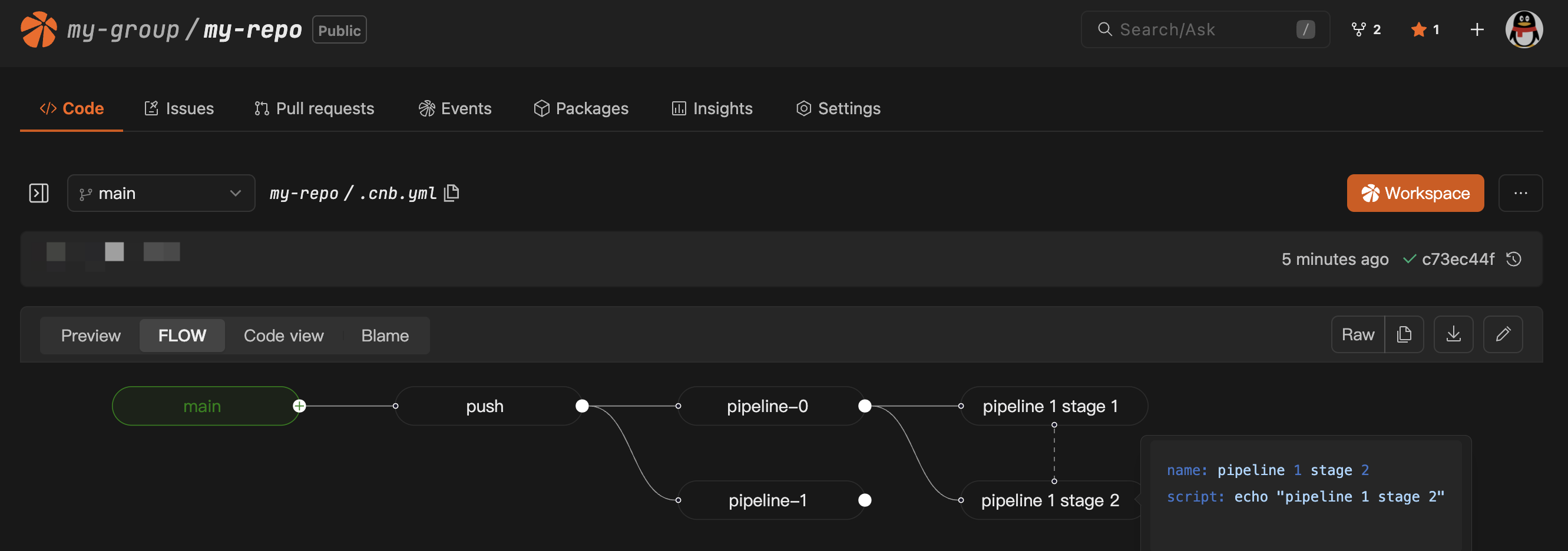
Click the Flow tab on the .cnb.yml file page to visually view the pipeline configurations triggered by the push event under the current branch.
Visual View
View Description
The Flow view displays the pipeline structure in flowchart form, including trigger branch, event type, grouping, and execution order.
Functional Value
- Intuitively display pipeline structure and execution order
- Verify whether the pipeline is triggered as expected
- Troubleshoot configuration issues, such as missing steps
- Display parallel or serial relationships between tasks
Event Tracking
After a Git event is triggered, view the pipeline trigger status through Events > History Events.
Event List

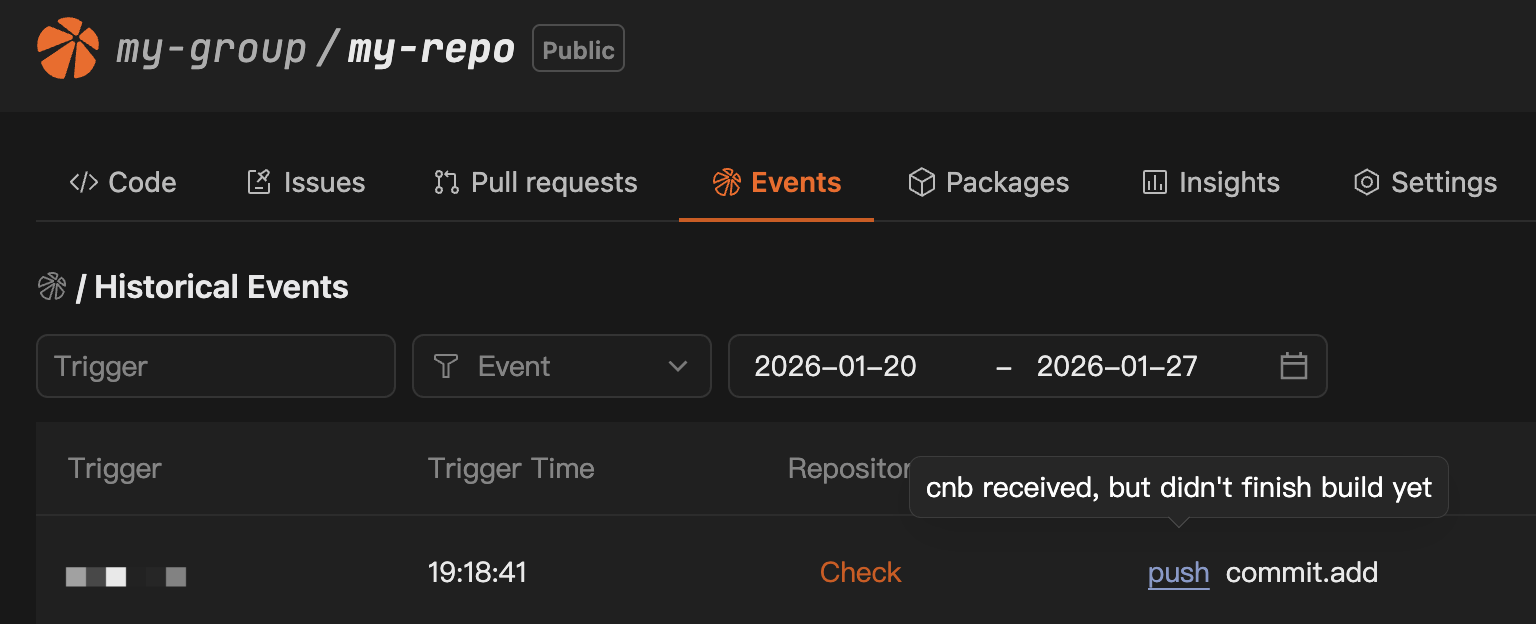
The list shows the two CI events triggered this time: push and commit.add.
CI Event Information Description:
- Event Type: Displays CI event types such as
push,commit.add,pull_request, etc. - Trigger Status: Triggered events are displayed as clickable
- Untriggered Description: Untriggered events cannot be clicked; hover to view the reason
push Event
Click the push event to jump to the build detail page to view the pipeline execution status and logs.
Detail Page Features:
- Status Display: Real-time execution status of the pipeline, including success, failure, or in progress
- Log Viewing: View logs to help locate issues or verify execution results
- Step Tracking: View the execution status and duration of each stage
- Environment Information: Display build environment, image, resource usage, etc.
- Retry Function: Support full or selective re-execution of pipelines and tasks
commit.add Event
Hover to view the reason why the event was not triggered.
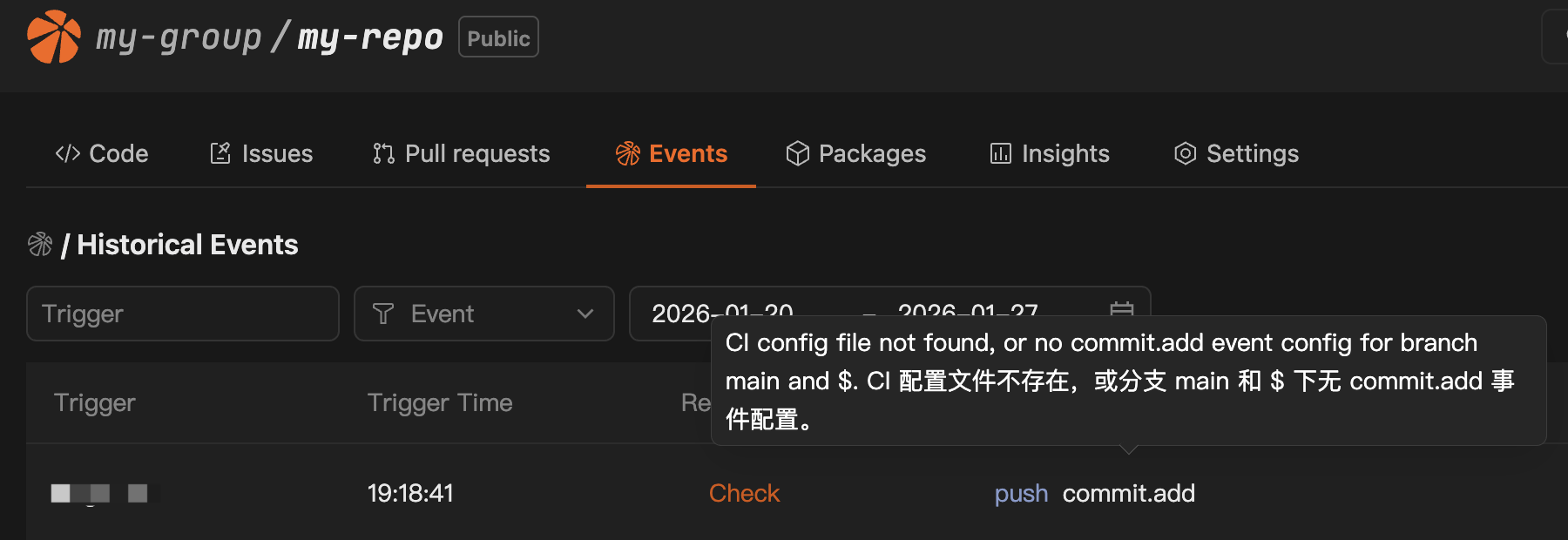
Untriggered Reasons:
- No
.cnb.ymlunder the branch, or.cnb.ymlsyntax error - Event trigger conditions not met, such as event mismatch
Best Practices
1. Modular Configuration
Abstract common pipeline steps into templates and reuse them through include to reduce duplication.
2. Regular Checks
Use preview and Flow to verify correctness after modifying the configuration.
3. Event Monitoring
Confirm trigger status through "History Events" and hover over untriggered events to view reasons.
4. Log Analysis
View detailed logs of failed stages when the build fails and adjust the configuration based on error information.
5. Incremental Verification
Verify complex configuration changes in a test branch and merge to the main branch after testing passes.
Notes
- Permission Check: The preview function only checks the access permissions of
includefiles and does not verifyallow_*attributes. After the event is triggered, the system will checkallow_*attributes to confirm access permissions. - Event Scope:
History Eventsonly displays code-related repository events such aspush,tag_push,pull_request, etc., and does not display non-code related events such astag_deploy,web_deploy,API Events,Scheduled Tasks, etc. - Rebuild: Pipelines triggered by rebuild will not be displayed in
History Events.
Through the above steps and best practices, you can achieve pipeline configuration writing, preview, Flow viewing, and event tracking.
For more details on pipeline configuration syntax, please refer to Grammar Manual and Configuration File.